 sageteachers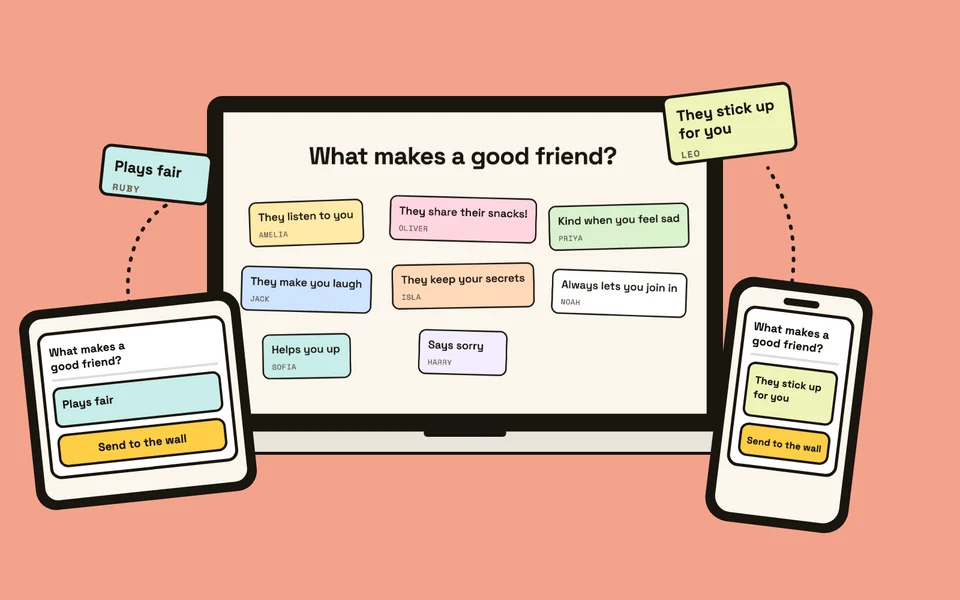
Jamboard and Working Wall side by side
| Google Jamboard | Sage Teachers' Working Wall | |
|---|---|---|
| Can you use it? | No. Editing stopped on 1 October 2024 and the app closed on 31 December 2024 | Yes, in any browser |
| Your old work | Jams were turned into PDFs in Google Drive | Walls save themselves: free keeps one, Pro keeps ten |
| The board itself | The 55-inch Jamboard reached end of life on 1 October 2024 | Runs on the board, laptop or tablet you already have |
| How pupils get on | Closed | A 5-digit code or QR code and a first name, no accounts |
| What Google suggested | FigJam, Lucidspark and Miro | Built for a classroom, with an approval tray for what goes up |
When did Jamboard shut down?
Google stopped anyone making or editing jams on 1 October 2024, and wound the Jamboard app down on 31 December 2024. In between, the app was view-only. Google announced it in September 2023, so many schools had a year’s notice, but plenty of teachers only found out when a jam they used every week stopped opening.
The hardware went the same way. Google’s help page says the 55-inch Jamboard reached end of life on 1 October 2024, and after that a board could no longer save or open a jam.
Where Jamboard was great
Jamboard was simple. A blank board, a set of frames to flip through, and it sat inside the Google Workspace accounts many schools already had, so sharing a jam was quick. For a lot of teachers it was the first time a whole class could add to the same board at once, and that is why so many still search for it.
Where Working Wall is weaker: it is not a Google file, so it does not sit in Drive or Google Classroom. The teacher needs a Sage Teachers account, and on the free trial it uses one token a day, where Jamboard cost nothing extra on a school’s Google account.
How Working Wall works
You put the wall on the board, pupils join with a code, and their notes appear live. Type a question across the top if you like, such as What do plants need to grow? A join code and QR code go up. Pupils scan it, or go to sageteachers.com/join on a tablet, laptop or phone, and type their first name. They send sticky notes in nine colours, drawings, links, and photos if you switch photos on.
Photos, links and videos always wait in a tray until you tap them through, and one switch makes every note wait too. Each pupil or group wall can have its own simple password, so children only add to their own. Notes land loosely pinned; drag them into groups, or press Straighten to line them up. Print this wall is in the More menu, and the wall saves itself for next lesson.
Working Wall or the Whiteboard?
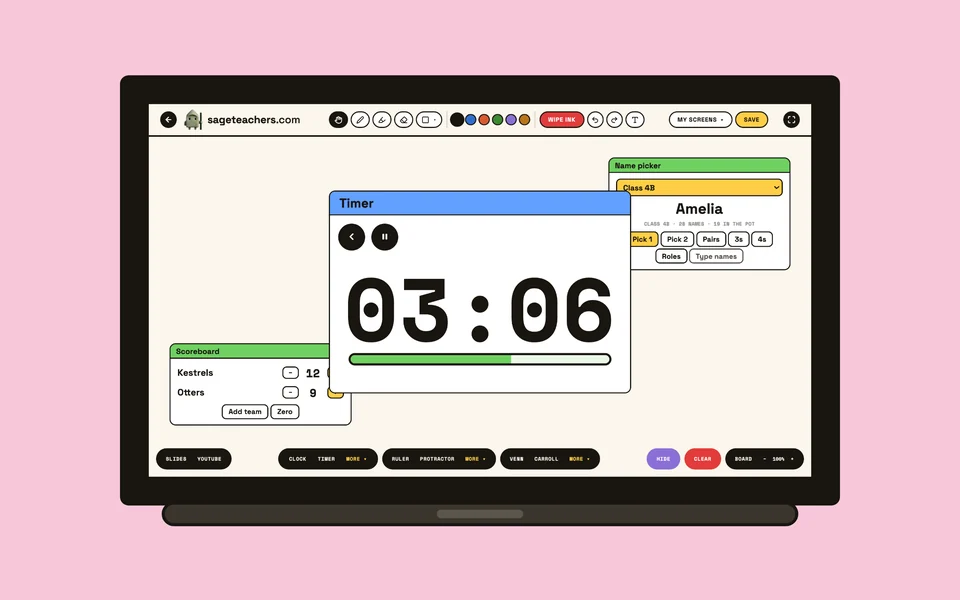
Use Working Wall when the class adds to the board, and the Whiteboard when you are the one writing. Jamboard did a bit of both. The Whiteboard is free on any teacher account and never uses a token. It has a pen, highlighter, shapes, text boxes and sticky notes, plus widgets you move around the board: a clock, a timer, a name picker, a group maker, a noise meter, dice, a scoreboard, Venn and Carroll diagrams, and a ruler, protractor and compass. Pupils cannot write on it from their own devices.
What happened to my old jams?
Google turned them into PDFs in Google Drive. Its help page says jams were converted to PDFs in 2025. To find them, search your Drive for type:Jam. You can export each one as a PDF, or as a PNG picture, though a PNG only holds a single frame. They are pictures now, not boards you can edit, so the easiest way back to a live board is to start a new wall and put the old PDF up beside it.
What Google recommended instead
Google pointed Jamboard users to FigJam, Lucidspark and Miro, and built all three into Google Meet, Drive and Calendar. They are capable whiteboards made for work teams. If your school already pays for one, it may do the job. For a primary class, check how each one handles pupil accounts and what pupils can post before you put it in front of thirty children.
What is free, and what costs a token
Working Wall is free to try: the first wall you run each day uses one token, and every wall after that on the same day is free. Every teacher account starts with 20 tokens. With Pro, Working Wall never uses a token, and you keep ten saved walls instead of one. The Whiteboard is free on every account and never uses a token. Pupils never need accounts, on any plan.
Questions teachers ask
When did Google Jamboard shut down?
Google stopped anyone making or editing jams on 1 October 2024, left the app view-only until the end of the year, and wound it down on 31 December 2024. The Jamboard board itself reached end of life on 1 October 2024.
What is the best free Jamboard alternative for teachers?
Working Wall on Sage Teachers is a free-to-try shared class board. You put it on the whiteboard, pupils join with a 5-digit code on any device and add notes, drawings, links and photos that everyone sees live. Pupils need no accounts. On the free trial it uses one token a day, from the 20 every teacher account starts with.
Can I get my old jams back?
Yes, as PDFs. Google says jams were converted to PDFs in 2025 and are in Google Drive. Search Drive for type:Jam to find them. You can export them as a PDF, or as a PNG, though a PNG only holds one frame.
Do pupils need a Google account to use Working Wall?
No. Pupils scan the QR code or type the code at sageteachers.com/join, then type their first name. There are no pupil accounts and no email addresses. Only the teacher signs in.
What did Google recommend instead of Jamboard?
Google pointed Jamboard users to FigJam, Lucidspark and Miro, which it built into Google Meet, Drive and Calendar. They are general whiteboard tools for work teams, so check how each one handles pupil accounts before you use it with a class.
Is there a free whiteboard I can just write on, like Jamboard?
Yes. The Sage Teachers Whiteboard is free on any teacher account and never uses a token. It has a pen, highlighter, shapes, text and sticky notes, plus a clock, timer, name picker and Venn diagrams you can move around the board. Pupils cannot write on it from their own devices; Working Wall is the one for that.
Can I keep a wall for the next lesson?
Yes. A wall saves itself as soon as something is on it. A free account keeps one saved wall and Pro keeps ten. You can also print the wall from the More menu.
Try it with your class
Open it on your board, put the code up, and let the whole class add to it. No download, no pupil accounts.